AWS Private CA
To allow Golioth to use your AWS Private Certificate Authority service as a PKI provider for your project, you need to go through a few steps in the AWS Console before you can configure a connection from Golioth.
For information about how you can establish a CA in AWS Private CA and issue end-entity certificates, please refer to the official AWS documentation.
Configuring AWS
To allow Golioth to securely connect directly to your AWS Private CA service, you'll need to create an IAM user with the required permissions.
1. Create an IAM user
Golioth connects to your AWS Private CA service as an IAM user. Although it's possible for Golioth to authenticate as an existing user, we strongly recommend establishing a dedicated user with a narrow set of permissions.
As an admin or an IAM user with the required permissions, navigate to the IAM User Management Dashboard in the AWS Console, and click Create User.
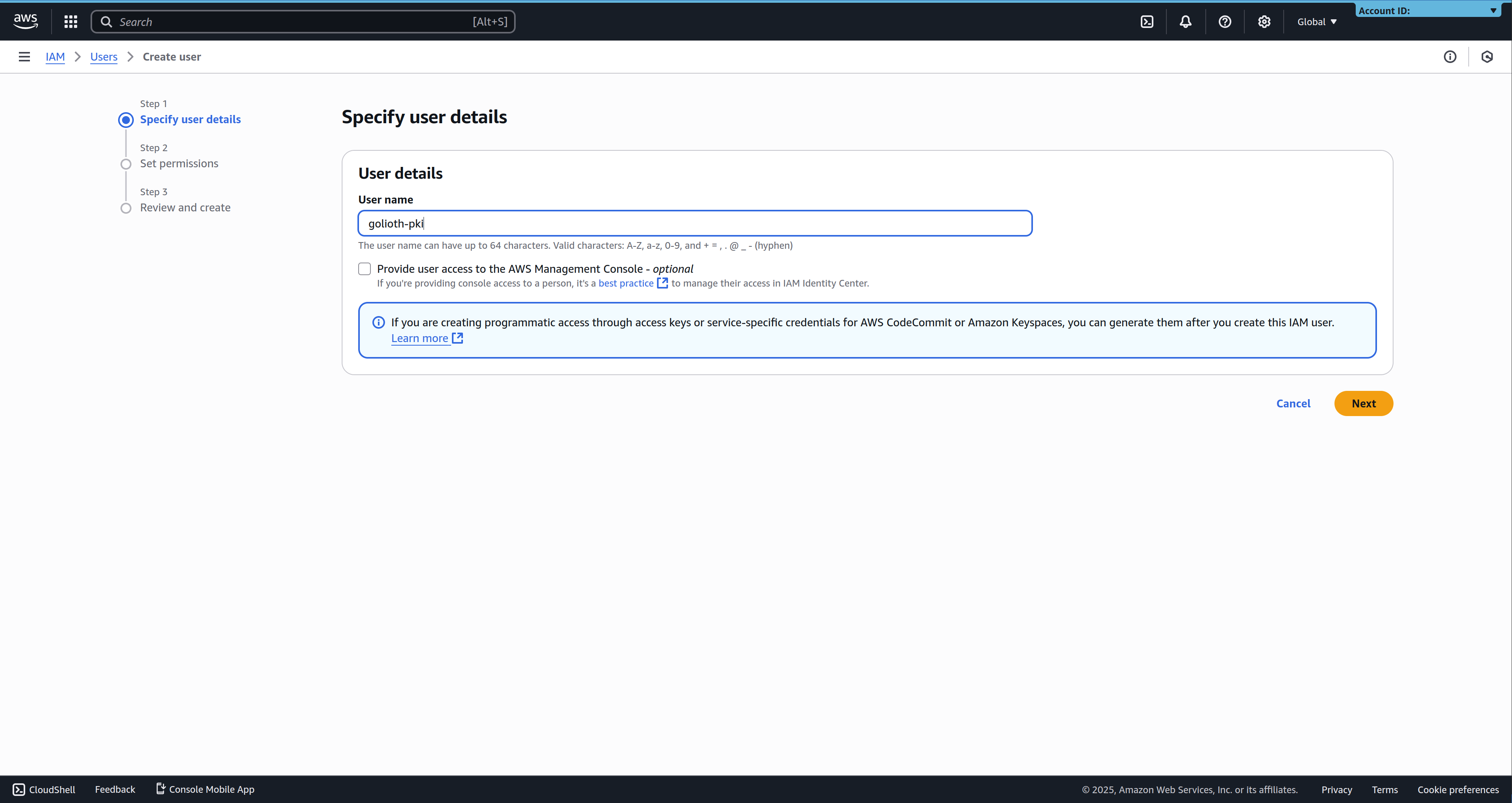
Pick a recognizable user name, and click Next to go to the permissions screen.
2. Set Permissions
The Golioth user requires read access to the Private CA service to be able to authenticate device certificates. This can be enabled by attaching the AWSPrivateCAReadOnly policy to the user.
To enable certificate rotation for your devices, you additionally need write permission for the AWS Private CA service. This can be enabled by attaching the AWSPrivateCAUser policy to the user.
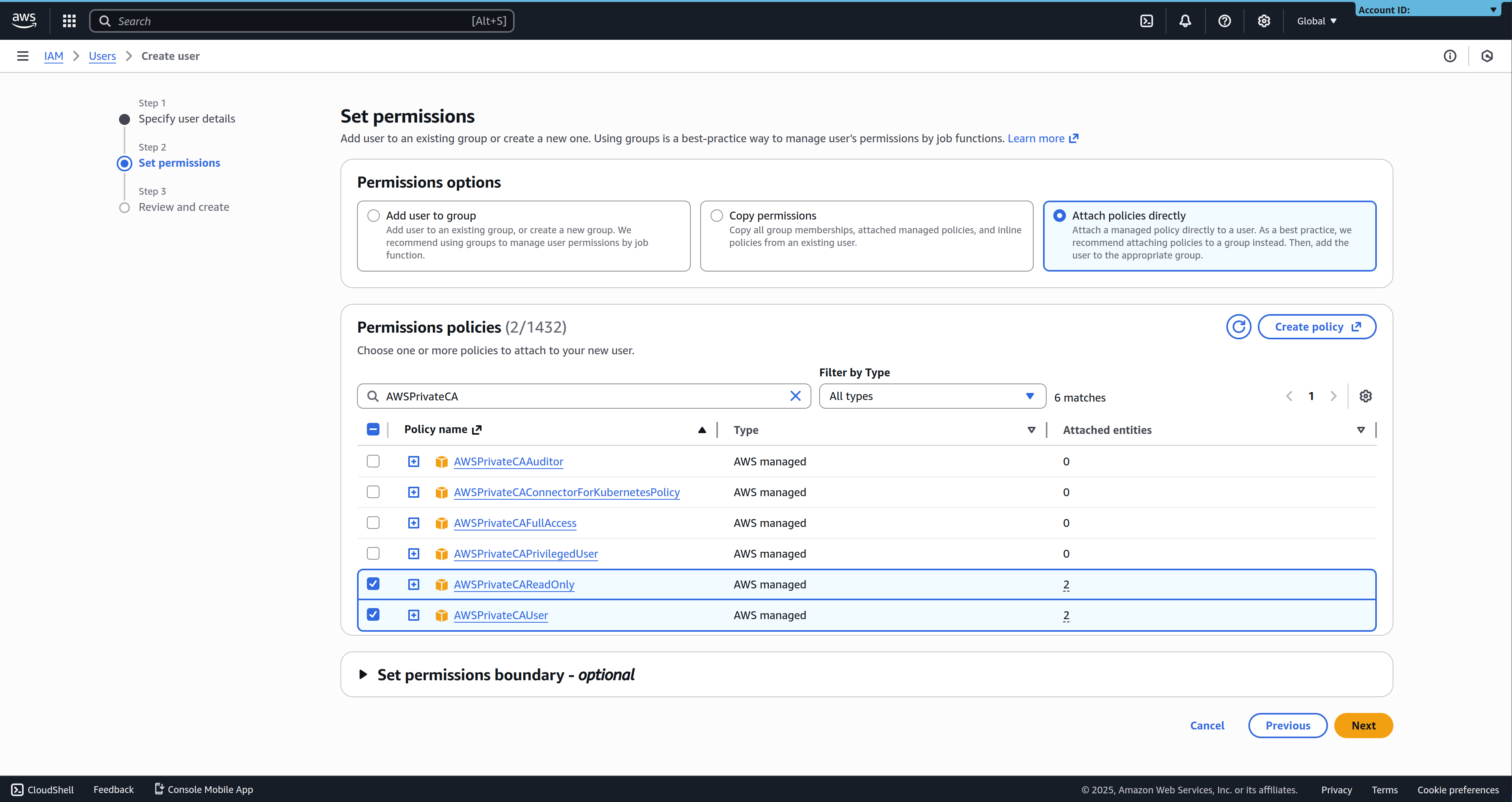
Other, more permissive policies, such as AWSPrivateCAFullAccess and AWSPrivateCAPrivilegedUser also grant the required permissions to verify and issue device certificates, but these policies additionally grant the user the ability to manage the CA certificates themselves, which is not necessary, and thus not recommended.
Policies can either be attached to the user directly when you create it, or by assigning the user to a user group with the required permissions.
Required permissions:
Golioth requires the following permissions to verify device certificates:
acm-pca:ListCertificateAuthoritiesacm-pca:GetCertificateAuthorityCertificate
To enable certificate rotation, Golioth additionally requires the following permissions:
acm-pca:IssueCertificateacm-pca:GetCertificate
3. Create an access key
Once the user is created with the required permissions, you'll need to create an access key that Golioth can use to authenticate as that user.
Follow the AWS documentation for instructions on how to create an access key for an IAM user. Note that the secret access key is only available during the creation process, and must be saved before leaving the page.
Connecting to AWS from the Golioth Console
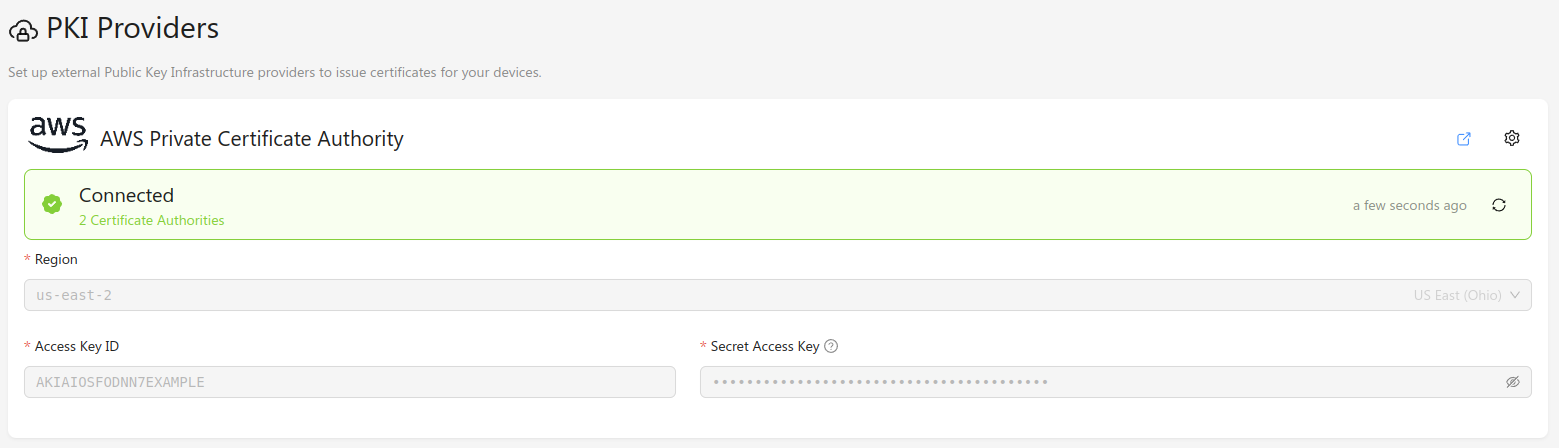
Once you have an AWS IAM user with the required permissions, you can configure Golioth's connection to the AWS Private CA from the Golioth Console. Navigate to the PKI Providers section in the sidebar, and click Add Provider. In the modal window, select AWS Private Certificate Authority, and the correct region for your AWS instance. Add the Access Key ID and Secret Access Key that you created in the AWS Console, and click Connect. The provider will be added to the list of known providers, and a provider status check will run.
If everything is configured correctly, the provider status should change to "Connected", and list the number of available certificate authorities.